1Why Automatic Payments Are Easy to Lose Track Of
Your streaming services bill one credit card, your gym membership drafts from your checking account, cloud storage renews through the App Store, and an old subscription is still charging a debit card you replaced two years ago. Every payment method has its own statement, its own login, and its own way of showing (or hiding) recurring charges - so no single screen ever shows you the full picture.
As we cover in our guide on how autopay leads to silent overspending, the convenience of automatic payments is exactly what makes them invisible. When a charge never requires action from you, it is easy to forget it exists - which is how hidden subscriptions quietly drain a bank account for months at a time.
Did you know? Surveys on subscription spending consistently find that most people underestimate their monthly recurring charges by 30-40% - and can only name about half of their active automatic payments from memory.
The fix is not more willpower - it is visibility. Here is exactly where to look for every automatic payment you have running.
2Find Automatic Payments on Your Bank Account
Your bank account is the source of truth for anything drafted directly from checking - rent, utilities, loan payments, and insurance premiums. Most major banks (Chase, Bank of America, Wells Fargo, Capital One, and others) list these separately from everyday purchases:
- Log into online banking or your bank's mobile app and look for a section labeled "Recurring Transactions," "Automatic Payments," or "Bill Pay."
- Pull up three months of statements. A charge that repeats on the same day each month, for the same or a similar amount, is almost always automatic.
- Check for ACH debits and preauthorized drafts specifically - these often do not show a merchant name you recognize on the statement line.
- If you cannot find a clear list, call your bank and ask them directly for all active preauthorized debits or standing automatic payments on the account.
Log the merchant, amount, and draft date for each one. This becomes the foundation of your automatic payments list.
3Find Automatic Payments on Credit & Debit Cards
Cards are the most common way people pay for subscriptions, which also makes them the easiest place to lose track of charges among everyday spending. Most card issuers now flag recurring merchants automatically:
Card issuer app: Look for a "Recurring Charges," "Subscriptions," or "Manage Autopay" section - most major issuers surface this without you needing to dig through statements.
Statement review: Scan three consecutive statements for merchants that charge similar amounts every month - common ones include streaming services, cloud storage, meal kits, and gym or fitness apps.
Debit cards: Because debit card autopay draws straight from checking, cross-check this list against what you found in your bank statement so you are not double-counting the same charge.
4Check PayPal and Venmo for Recurring Payments
A huge number of US subscriptions - especially streaming, software, and online memberships - route through PayPal or Venmo instead of a card directly, which means they will not show up on your card statement at all.
PayPal: Go to Settings, then "Payments," then "Manage Automatic Payments" to see every merchant authorized to charge you and cancel any you no longer want.
Venmo: Open the app, tap the menu, then "Settings" and "Preauthorized Payments" to review active merchant authorizations.
5Find App Store and Play Store Subscriptions
App subscriptions are especially sneaky because the charge on your statement reads "Apple" or "Google," not the actual app name. Check both platforms directly:
iPhone (App Store): Open Settings, tap your name, then "Subscriptions" to see every active and expired subscription with its renewal date.
Android (Play Store): Open the Play Store, tap your profile icon, then "Payments & subscriptions" and "Subscriptions."
Check both platforms if you have switched phones: Subscriptions from a previous iPhone or Android device keep billing even after you switch, unless cancelled on the original platform.
Pay close attention to free trials here in particular - many silently convert to paid after 7 or 30 days. Our guide on how free trials trick you into paying breaks down exactly how this happens and how to avoid it.
6Building One Master List
Once you have checked your bank account, cards, PayPal/Venmo, and app stores, consolidate everything into a single list before you forget what you found. Without one place to see it all, you will end up repeating this audit every few months.
Capture the following for each automatic payment:
- Merchant name and category
- Monthly or annual amount
- Payment method (bank, card, PayPal)
- Draft date and next renewal
- Whether it can be cancelled here or requires a call
- Whether you still actually use it
Once you know what to cut, our step-by-step checklist for cancelling subscriptions and automatic payments walks through cancelling each one properly, and our guide to auditing recurring payments shows how much a full cleanup typically saves.
7Automating It with TrackAutoPay
A one-time audit helps, but automatic payments change constantly - new subscriptions get added, trials convert, and prices creep up. Staying on top of it long-term needs a system, not a spreadsheet you update twice a year.
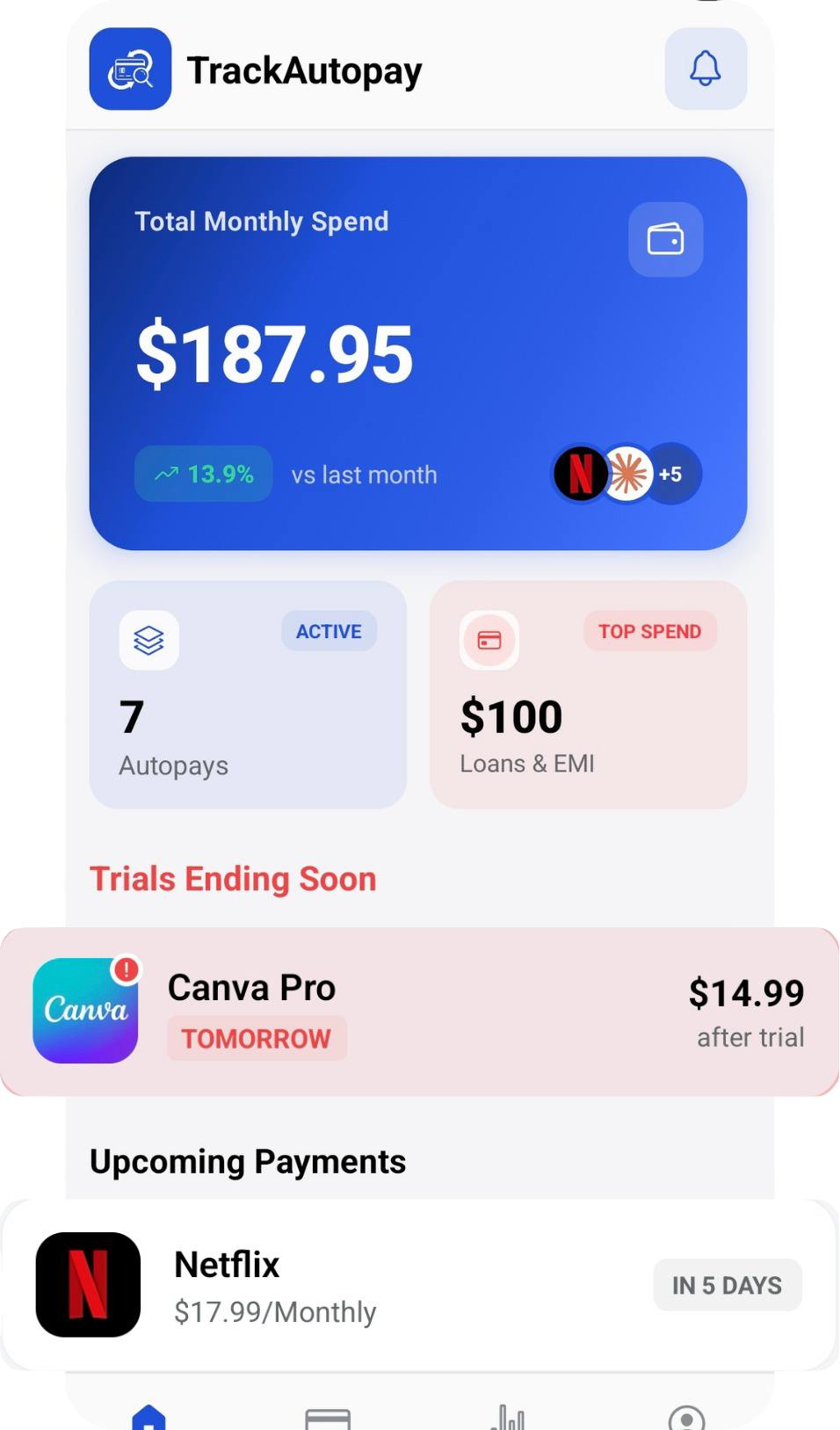
TrackAutoPay gives you a single dashboard for every automatic payment, regardless of whether it runs through your bank, a card, or PayPal. Instead of checking four or five different apps every month, you get one list with renewal reminders and a running total of what is actually coming out of your accounts. See how it compares to other options in our roundup of the best subscription tracker apps.
- Add automatic payments from any bank, card, or app
- Get reminders before each charge hits
- See your total monthly recurring spend at a glance
- Organize by category, amount, or draft date
See Every Automatic Payment in One Dashboard
Stop checking four different apps. Add every automatic payment to one place and never get surprised by a charge again.